Updated 2026-08
How to Import Sprite Sheets into Unity (Slice → Animate → Play)
This guide covers the full path from a sprite sheet PNG to a playable in-game animation. It applies to Unity 2022 LTS and newer with the 2D template — no third-party plugins required.
Quick answer
Drag the PNG into your Project window → set Sprite Mode to Multiple in the Inspector → open the Sprite Editor and slice with Grid By Cell Size → select all sliced frames and drag them into the Scene. Unity auto-creates the Animation Clip and Animator — ready to play.
What you need
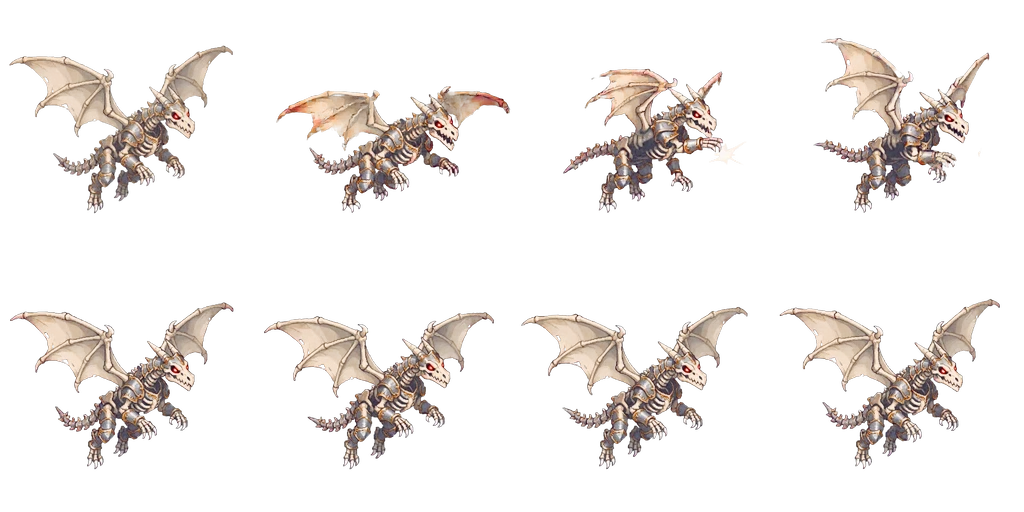
A sprite sheet on an even grid (e.g. 4×2 cells of 256px), or a set of transparent PNG sequence frames. Unity handles both: sheets slice fastest, while PNG sequences skip slicing entirely — just multi-select and drag them into the Scene.
Step-by-step
1Import the PNG as a Sprite
Drag the sprite sheet into the Project window. Select it and confirm Texture Type is Sprite (2D and UI) in the Inspector. That's the default in 2D templates; switch it manually if you're in a 3D template.
2Set Sprite Mode to Multiple
Because one image contains many frames, change Sprite Mode from Single to Multiple, then click Apply. This tells Unity the texture will be sliced into multiple sprites.
3Slice it in the Sprite Editor
Open the Sprite Editor from the Inspector. In the top-left choose Slice → Grid By Cell Size, enter your frame size (256×256 for the sheet in this guide), hit Slice, then Apply in the top-right. Prefer Cell Size over Cell Count — the setting survives when you add more frames later.
4Drag frames into the Scene to auto-create the animation
Expand the sliced sheet in the Project window, select every frame (click the first, Shift-click the last) and drag them together into the Scene or Hierarchy. Unity prompts you to save a .anim file — and auto-creates a GameObject with an Animator already wired up. This is the fastest frame-animation path in Unity.
5Set the frame rate
Double-click the .anim to open the Animation window and set Samples to your target frame rate (10–12 is typical for frame animation). If Samples is hidden, enable Show Sample Rate from the three-dot menu in the window's top-right corner.
6Play it from code
Once each action (walk / attack / die) has its own clip, wire states in the Animator window and switch from code with Animator.Play or parameters:
// PlayerAnimation.cs
using UnityEngine;

public class PlayerAnimation : MonoBehaviour
{
    Animator animator;

    void Awake() => animator = GetComponent<Animator>();

    public void Attack()
    {
        // Play by state name - simplest for frame-animated characters
        animator.Play("dragon_attack");
    }
}
Three import settings pixel art needs
- Set Filter Mode to Point (no filter). The default Bilinear smears pixel edges — the #1 cause of 'my pixel art looks blurry in Unity'.
- Set Compression to None (or at least High Quality). Texture compression introduces artifacts on small pixel sprites.
- If neighboring frames bleed into each other at runtime, add 2px of Padding in the Sprite Editor grid — or export your sheet with gutter space between frames in the first place.
FAQ
- PNG sequence or sprite sheet — which is better in Unity?
- The end result is identical; the workflow differs. PNG sequences skip slicing (multi-select and drag), while sheets keep your project tidier with fewer import slots. Use sheets for bigger projects, sequences for fast prototyping.
- My character drifts or floats after the animation plays — why?
- Usually inconsistent pivots between frames. Select all frames in the Sprite Editor and set Pivot to Bottom (grounded characters) or Center (flying ones). Frames exported from FrameSprite are already centered, so Center just works.
- How do I organize multiple actions for one character?
- One sheet (or sequence) per action, each with its own .anim, all inside a single Animator Controller driven by Trigger parameters (attack, die). Avoid stuffing every action into one mega-sheet — slicing and maintenance both suffer.
- My sprites show white or dark fringes in Unity — how do I fix it?
- Fringes come from semi-transparent edge pixels combined with compression. Confirm Compression is None and Filter Mode is Point; if fringes persist, the source alpha itself is dirty — FrameSprite's browser-side chroma-key includes despill, so its transparent PNGs import clean.
Need sprite sheets to import?
Upload one character image to FrameSprite and get 14 action animations back — auto chroma-keyed in the browser, exported as transparent PNG sequences and packed sprite sheets. The dragon in this guide was made exactly this way. 30 free credits on sign-up.
Generate sprite sheets free