How to make a sprite sheet from PNG animation frames
A sprite sheet packs multiple animation frames into one transparent PNG grid. It keeps assets easier to manage, import and package — as long as every cell has the same size, frame order is unambiguous and the row/column settings match Unity or Godot.
Verified by the FrameSprite Workflow Lab · Updated 2026-08
Short answer
Normalize every PNG frame to the same canvas and baseline, then arrange them left-to-right and top-to-bottom in playback order. Sheet width equals frame width × columns; height equals frame height × rows. Export a transparent PNG and slice it in-engine with the same cell size or row/column count.
30 free credits · no card required · failed runs auto-refund
Five steps to an evenly spaced sprite sheet
- 01
Normalize every frame canvas
Find the frame with the largest character bounds and use it to define one cell width and height. Do not auto-crop each PNG to different bounds, or the character will jump around inside the packed cells.
- 02
Align the character center or foot baseline
Grounded characters usually share one foot baseline; flying or rotating objects usually share a center point. Lock that alignment anchor before placing every frame on the same transparent canvas.
- 03
Choose rows and columns, then preserve order
An eight-frame animation can be arranged as 8×1, 4×2 or 2×4. Most tools read left-to-right, then top-to-bottom; use zero-padded filenames such as frame_000 and frame_001 to keep ordering stable.
- 04
Decide whether to add padding
For pixel art or texture atlases, a 1–2px transparent gutter can prevent linear filtering from sampling neighboring cells. If the engine uses Point/Nearest filtering and exact slicing, extra padding is usually unnecessary.
- 05
Export transparent PNG and verify slicing
Preserve RGBA transparency and never use JPEG. After import, verify the first frame, last frame, pivot and playback order before setting FPS and looping. If edges are offset, check cell size and padding first.
A tested example
The sheet dimensions divide evenly by its columns and rows, preventing fractional slice boundaries.
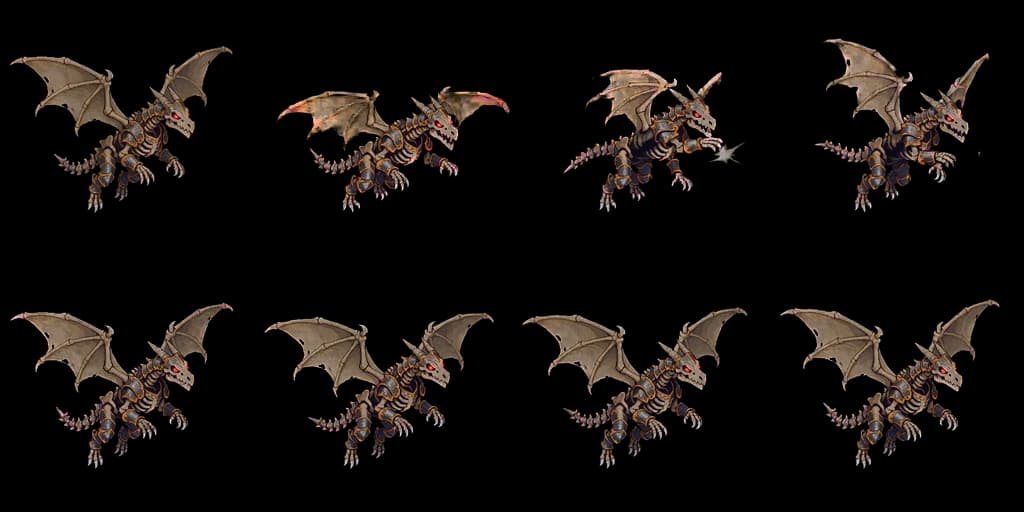
Reproducible details
- Canvas
- 1024×512
- Grid
- 4×2
- Cell
- 256×256
1024×512 WebP
Pre-pack checklist
- Every input frame has exactly the same width and height
- The character center or foot baseline is consistent
- Playback order is explicit in filenames or import order
- The final sheet dimensions divide evenly by cell size
- Alpha transparency is clean with no accidental cell background
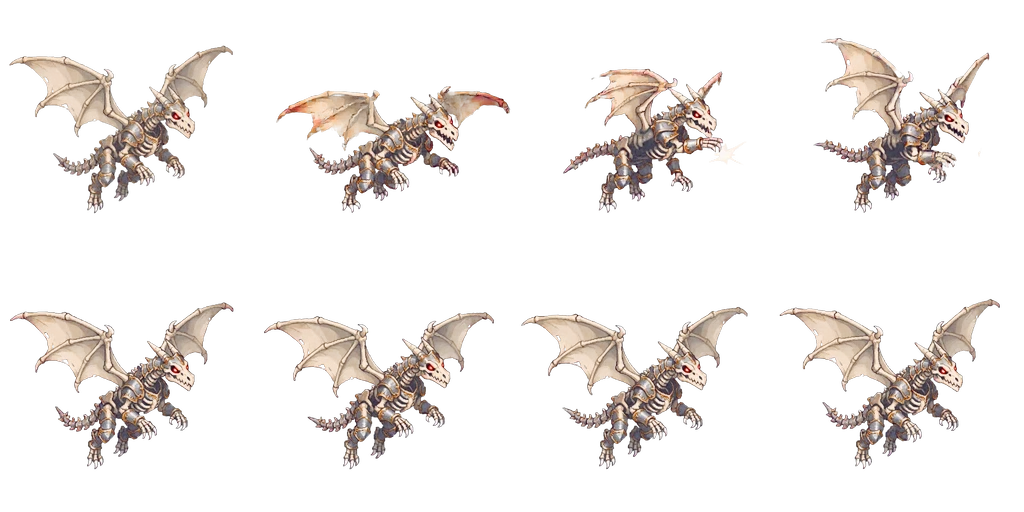
How to calculate sprite-sheet dimensions
For eight 256×256px frames arranged in four columns and two rows, the final sheet is 1024×512px. If each cell gets 2px of padding, include that gutter in the export dimensions and use matching margin settings when slicing.

Frequently asked questions
- Should a sprite sheet be one row or a grid?
- Either works. A single row is easiest to understand; a grid is more compact for many frames. Results are identical when row/column count, cell size and reading order are explicit.
- Is a PNG sequence or sprite sheet better?
- PNG sequences are easier to retouch and prototype with; sprite sheets are tidier for import and runtime packaging. Both should preserve transparency and consistent canvas size.
- Why are sliced frames slightly offset?
- Usually the sheet does not divide evenly by the selected rows/columns, input sizes differ, or padding was added without matching import settings. Verify exact pixel dimensions instead of positioning slice lines by eye.
- Can I create a sprite sheet online?
- Yes. FrameSprite's free browser tool uploads PNG sequences, adjusts column count and spacing, and downloads a transparent sprite sheet without requiring an account.
Next in the workflow
Start with one character image
Generate consistent action frames, remove the background and slice in your browser, then export to your engine.
Start free